Understand MCP in 10 Minutes (and Why It Changes Your AI Setup)
The one protocol that lets AI read your Figma, GitHub, and docs directly. A plain-English explainer for designers, with examples of what it unlocks in real work.
MCP in one sentence
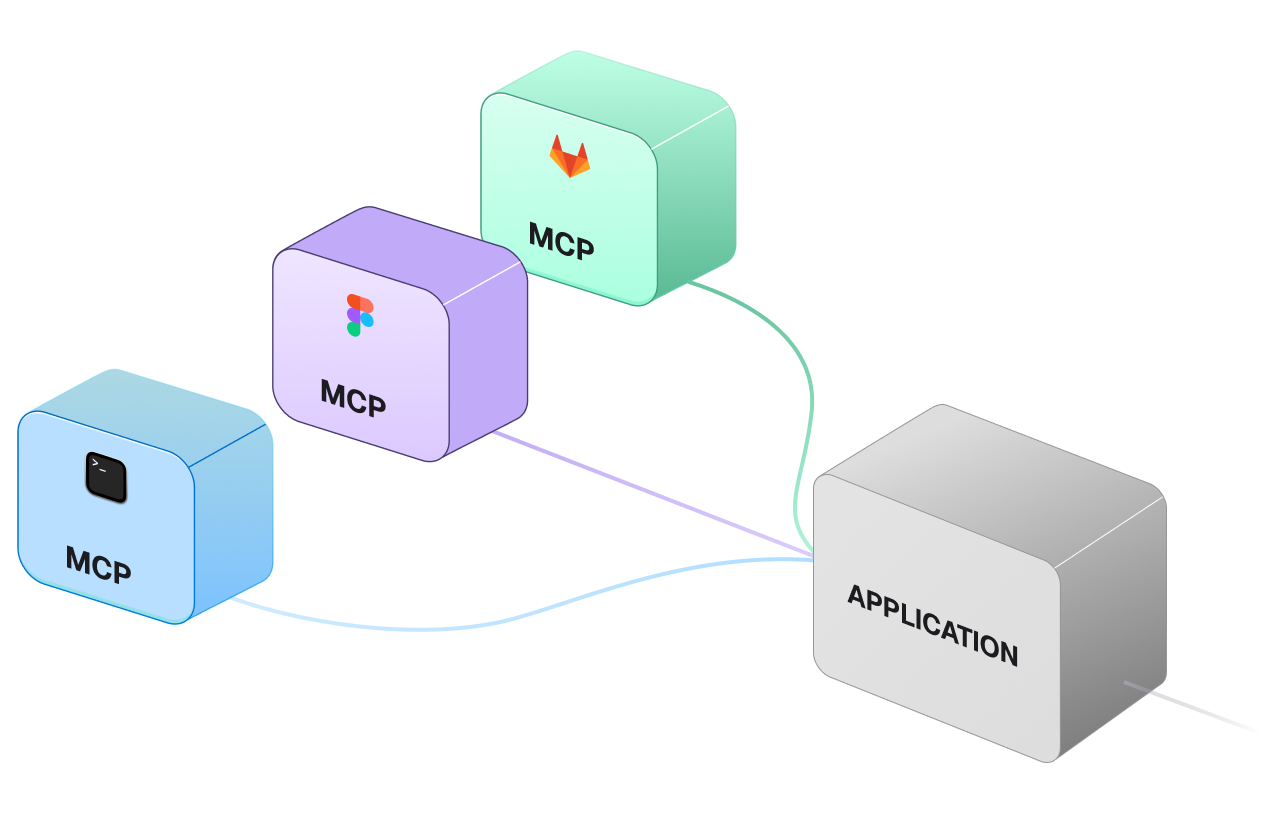
MCP is an open standard that lets AI assistants talk directly to your tools. No more copy-pasting between apps.
Without MCP, your AI assistant is blind. It can only see what you paste into the chat window. With MCP, it gets direct access to your actual design files, tokens, and documentation.
- Figma Files, components, tokens
- Design system Variables, naming rules
- Storybook Component docs
- GitHub Repos, PRs, commits
- Browser Live pages, screenshots
- Web Any URL, any docs
What MCP unlocks
Read your Figma file
Components, tokens, styles, variables. Directly from the source.
Query your design system
Variable values, naming conventions, health scores. No manual export needed.
Access documentation
Storybook, Notion, Confluence. Your AI sees what your team sees.
Run tools
Audits, linting, code generation. Triggered by a prompt, not a UI.
How it works
MCP follows a client-server model with three parts:
- MCP Server. A small program that exposes tools. Example, the Figma MCP Server exposes
get_design_context,get_variables, etc. - MCP Client. Your AI assistant (Claude Code, Cursor, VS Code Copilot). It discovers what tools the server offers and calls them when needed.
- Transport. How they communicate. Usually stdio (local) or SSE (remote).
- 01
Your prompt
Natural language: 'audit my button component.'
- 02
AI client
Claude Code or Cursor decides which tools to call.
- 03
MCP server
Bridges AI to the tool. Knows what's available.
- 04
Tool
Figma, tokens, GitHub. Returns real data.
- 05
Response
AI shapes the answer using real values, not guesses.
Real examples
Audit a component
You ask: “Audit my button component.”
MCP calls the Figma server to read the component, checks tokens against your naming rules, and returns a structured report. No clicking through menus.
Button component audit
Token coverage
Issues
- 3 raw hex values in primary variant
- Padding 14px does not match spacing scale
- Hover state missing for ghost variant
Suggested fixes
- Replace #2563EB with color.action.primary
- Use spacing.3 (12px) or spacing.4 (16px)
- Add focus-visible token from interaction set
Query your tokens
You ask: “What color tokens do we have?”
The Figma MCP reads every variable in your file and lists them grouped by collection. You get a complete inventory in seconds, not hours.
Generate a spec
You ask: “Generate a component spec for the alert.”
MCP reads the component structure, its variants, tokens, and spacing via the Figma server, then writes a structured spec document.
Available MCP servers for designers
Figma Dev Mode MCP
Official. Reads designs, components, tokens, and variables from Figma.
Playwright MCP
Browser automation. Screenshot pages, test flows, visual regression.
Firecrawl MCP
Web scraping. Pull content from any URL into clean markdown.
GitHub MCP
Read and write to any repo. Open issues, leave PR comments, fetch files.
| Criterion | Figma Dev Mode Best pick Start here if you live in Figma | Playwright If you ship to the web | Firecrawl If you research a lot | GitHub If you work with engineers |
|---|---|---|---|---|
| Setup time | 2 min | 5 min | 2 min | 3 min |
| Reads Figma | ✓ | — | — | — |
| Reads tokens | ✓ | — | — | — |
| Browser access | — | ✓ | ✓ | — |
| Free tier | ✓ | ✓ | ✓ | ✓ |
How to set up your first MCP server
Most MCP servers need a single JSON config. Add it to your settings, and the AI discovers tools automatically.
In Cursor or Claude Code, you add this to your settings:
{
  "mcpServers": {
    "figma": {
      "url": "http://127.0.0.1:3845/sse"
    }
  }
}
That’s it. The AI assistant discovers available tools automatically.
What MCP is NOT
- It’s not an API. APIs are for apps to talk to services. MCP is for AI to talk to tools.
- It’s not AI itself. MCP doesn’t make decisions. It gives AI access to information.
- It’s not Figma-only. MCP works with any tool that builds a server (databases, CMSes, CI/CD, etc).
What you learned
Wire up one MCP server and ask your AI to read real design data
-
Add the Figma MCP config to your AI client
Open Cursor’s or Claude Code’s settings file. Paste the Figma MCP config block from this guide. Save. Restart the AI client so the config loads. Start the Figma desktop app so the local MCP endpoint is reachable.
- The AI client lists
figmaunder available MCP servers in its status panel - No errors in the client logs about an unreachable MCP server
- The Figma desktop app is open, not just the web app
- The AI client lists
-
Ask the AI to read a real component from Figma
Select a component in Figma. In Cursor or Claude Code, ask: “Read the currently selected Figma node. List its variables, its variants, and the raw colors it uses.” Read the response.
- The response names the exact component you selected, not a guess
- Variables are quoted by their real names, not paraphrased
- Any raw hex values not bound to a token are called out so you can clean them up later
- You used zero copy-paste to get this information
Finished this lesson?
Mark it complete to track your progress through "Agentic Design Systems".
Try with Prompts
Ready-to-use prompts related to this guide
Prompts for generating components from Figma with MCP and documenting implementation.
Translate brand guidelines (PDF, style guide) into a structured set of design tokens with proper naming and hierarchy.
Generate comprehensive component documentation including props, usage guidelines, do's and don'ts, and accessibility notes from a component's code.