Watch the walkthrough
What is Figma MCP?
The Figma MCP (Model Context Protocol) server creates a bridge between your Figma designs and AI coding tools like Cursor and Claude. It allows AI to read your designs, extract component specifications, and generate code that matches your design system.
What’s new: bidirectional sync
Announced at Config 2025 (May 7, 2025). Rolled out to broader users through late 2025 and early 2026.
Figma now supports bidirectional sync between Figma and code. This is the part that changes everything.
Before, MCP was one-way: AI reads your Figma file, AI writes code. If you edited the code, your Figma file would drift out of sync, and you’d have to manually update it.
Now the loop closes. Changes you push from code can flow back into Figma. A button color updated in your tokens.json updates in Figma. A new component variant added in your codebase shows up in your library. Your design file stops being a snapshot and starts being a live view of what is actually shipping.
For designers, this means three things:
- Your design file is no longer the source of truth, your code is, and your design file reflects it. This sounds scary at first. It is not. It removes the “design said one thing, engineering shipped another” problem.
- You can review what shipped without leaving Figma. Open the file, see the live state.
- You can prototype faster. Sketch in Figma, ship the code, watch the design file update with the production reality.
Why It Matters
Without MCP, you copy-paste between Figma and your code editor. With MCP, the AI reads your Figma file directly and generates pixel-perfect implementations. With bidirectional sync, the design and code stay aligned without manual work.
Setup
You have two options: remote (hosted by Figma, simpler) or local (self-hosted, more control).
Option 1: Remote Figma MCP server (recommended)
Figma now hosts a remote MCP server. No Node.js install, no token juggling, no local processes. You point your editor at a URL and authenticate through your Figma account.
Use this if:
- You want the fastest setup
- You don’t want to manage local processes
- You’re on a Figma plan that includes MCP access
Add to your MCP configuration:
{
  "mcpServers": {
    "figma": {
      "url": "https://mcp.figma.com",
      "transport": "http"
    }
  }
}
Then restart your editor and authenticate when prompted.
Option 2: Local Figma MCP server
Run the server on your machine. More setup but full control over the connection and your token.
Use this if:
- You need offline access
- You want to inspect what data is being sent
- Your network blocks the remote endpoint
Prerequisites:
- Node.js 18+
- Figma Personal Access Token
- An MCP-compatible editor (Cursor, Claude Desktop)
Installation:
npm install -g @anthropic/figma-mcpConfiguration:
{
  "mcpServers": {
    "figma": {
      "command": "figma-mcp",
      "env": {
        "FIGMA_ACCESS_TOKEN": "your-token-here"
      }
    }
  }
}
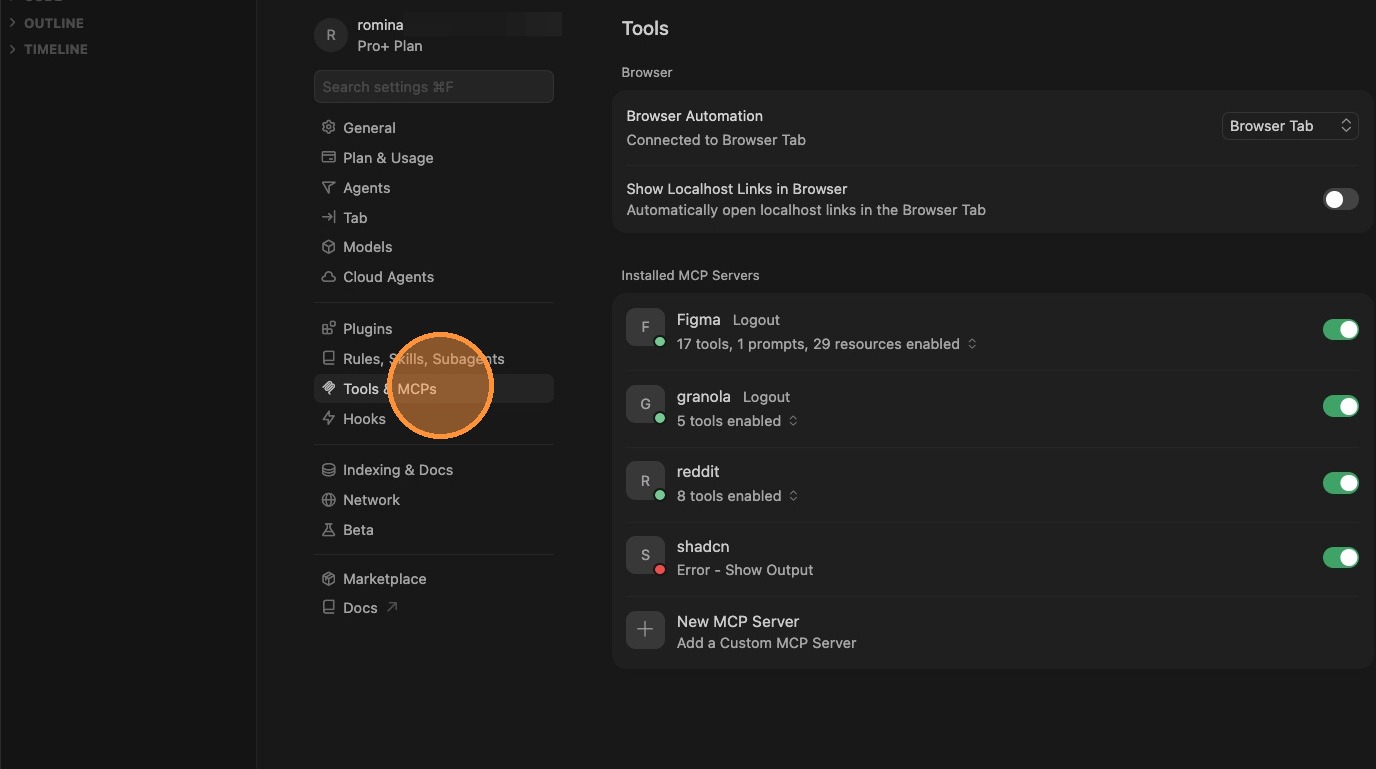
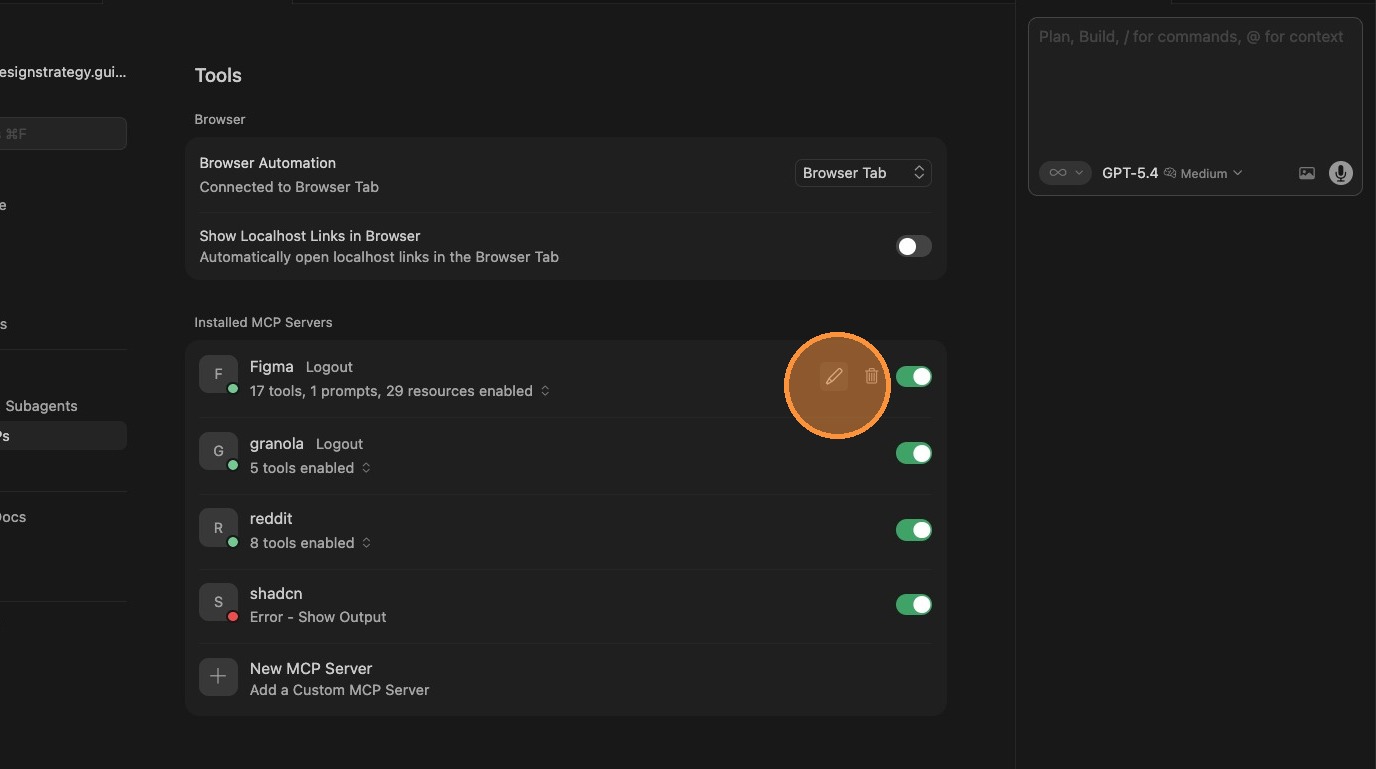
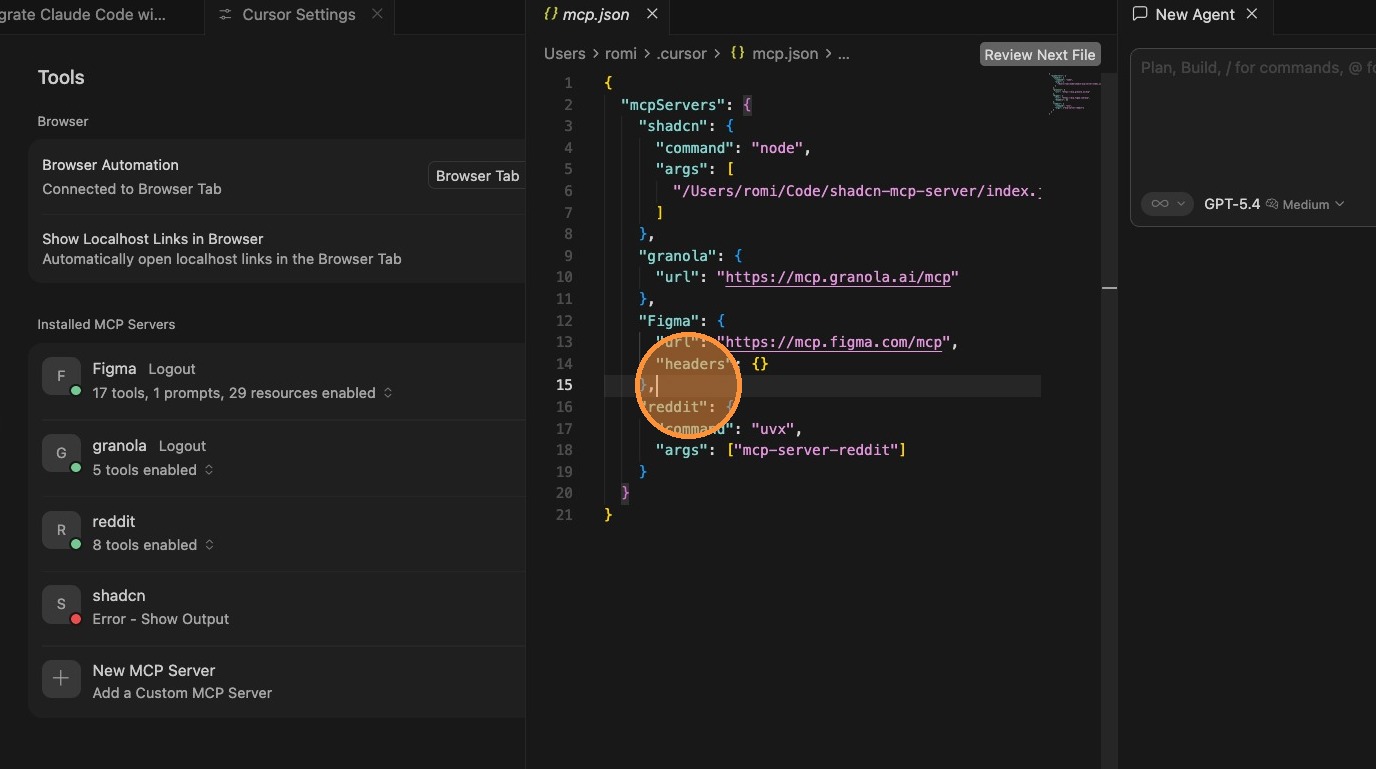
Cursor walkthrough
Step-by-step Cursor setup for the Figma MCP server.
Step 1
[describe what’s happening in this screenshot]
Step 2
[describe what’s happening in this screenshot]
Step 3
[describe what’s happening in this screenshot]
Best Practices
- Start with a single component, not the whole file
- Use auto-layout in Figma for better code generation
- Name your layers semantically (not “Frame 42”)
- Keep your token structure clean for accurate extraction
Try with Prompts
Ready-to-use prompts related to this guide
Prompts for generating components from Figma with MCP and documenting implementation.
A prefill technique that makes Claude return parseable JSON tokens with no preamble, no apology, and no markdown wrapper. Drop-in pattern for token extraction pipelines.
Translate brand guidelines (PDF, style guide) into a structured set of design tokens with proper naming and hierarchy.